
How to download a Facebook video, step by step
Open the video on Facebook and copy its link (Share → Copy link). Paste the link into VidKlik, press Download, then choose a quality from the list and save the file — it comes straight from Facebook to your device.
Three minutes, no software, no account: downloading a public Facebook video is mostly a matter of knowing where the link hides and which quality line to pick. This guide walks the whole path with screenshots of the actual screens, including the one detour that trips almost everyone — the moment the browser opens the video player instead of saving the file.
Before you start: three things to know
Only public videos work. If a video is set to friends-only, private, or lives inside a group, no online tool can fetch it — group videos are not supported here, even public ones, because Facebook serves them through a different mechanism. The qualities are Facebook's, not ours: the list shows exactly the renditions Facebook encoded for that video, no more, no less. And the file travels directly from Facebook's servers to your device — VidKlik only reads the link and lists the options; nothing is stored or re-uploaded.
Step 1 — Copy the video link
On the Facebook app or website, open the video and tap Share, then Copy link. On a computer, you can also right-click the video and copy its link, or copy the address bar while the video page is open. Links shaped like /watch/?v=… and /reel/… are accepted. A fb.watch/… short link must first be opened once in your browser so it expands to the full address — then paste that address.

Step 2 — Paste the link into VidKlik
Open the Facebook video downloader, paste the link into the field and press Download. Tracking parameters that Facebook adds to shared links (the long fbclid tail) are cleaned automatically — you do not need to trim the link yourself.

Step 3 — Choose a quality and save the file
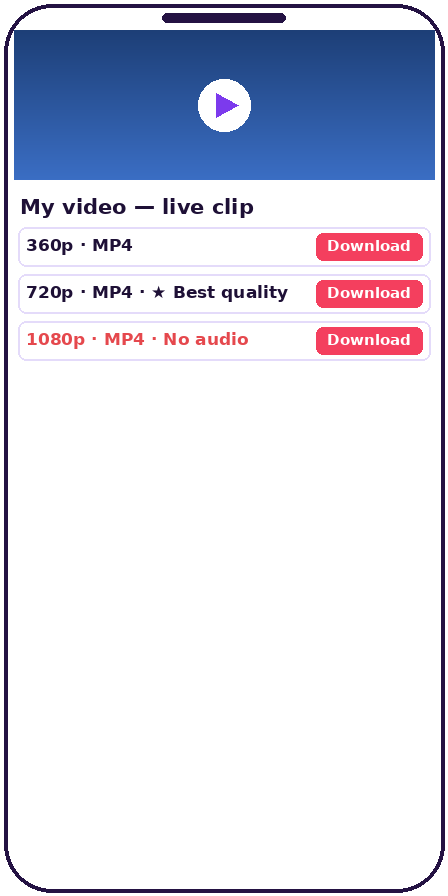
The result lists every rendition Facebook offers for this video, best first, with the top line starred as Best quality. Two things deserve a look before you tap: lines tagged NO AUDIO are video-only streams (Facebook encodes some high resolutions this way) — for a normal watchable file with sound, pick a line without that tag, or the separate Audio only · MP3 line if you only want the sound. File size grows fast with resolution: a 1080p file can weigh ten times its 360p version.
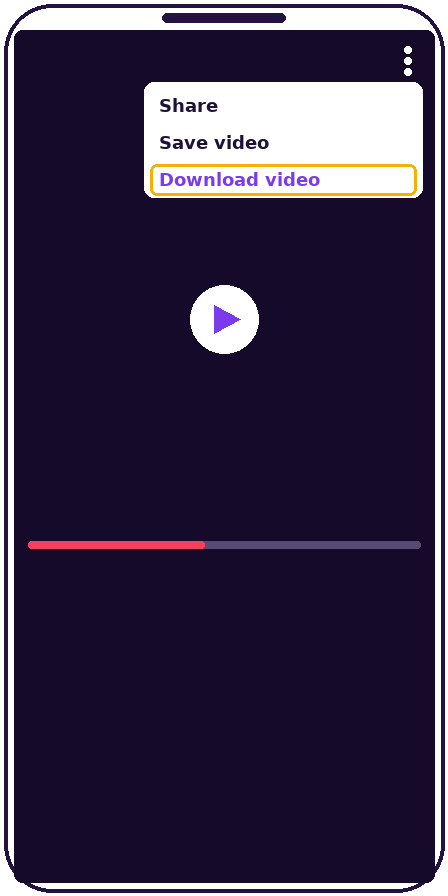
If the browser opens the video player instead of downloading: this is the classic detour, on desktop and mobile alike. The file has not failed — the browser is simply previewing it. Open the player's menu (the three-dot button, top right of the player) and choose Download video; the save dialog follows immediately.
Where the downloaded file ends up
On a computer, the video lands in the browser's Downloads folder. On Android, it sits in the Downloads folder of the Files app, ready to be moved to the gallery or an SD card. On iPhone, Safari saves to the Files app (Downloads folder) — not directly to Photos; from Files you can share it into Photos in two taps. Our dedicated iPhone guide and Android guide cover each case in detail.
The mistakes people hit most often
Pasting a link to a private or friends-only video — the tool answers honestly that it cannot be fetched. Expecting a group video to work — group videos, public or not, are outside what this tool supports. Picking a NO AUDIO line and finding the file silent — pick an untagged line instead. Assuming a missing HD line is a bug — if the list tops out at 360p or 480p, the source video itself was never encoded higher; our troubleshooting guide works through every error message one by one.
A word on rights
Downloading is for personal, offline viewing. The video still belongs to its creator: re-uploading it, especially commercially, needs their permission. When in doubt, download to watch — not to republish.
Frequently asked questions
Is it free, and do I need an account?
Yes, fully free, with no account and nothing to install. The tool runs in the browser, on phone and computer alike.
Why is my downloaded file silent?
You picked a line tagged NO AUDIO — a video-only stream Facebook encodes at some resolutions. Download an untagged line instead; it carries picture and sound together.
The browser plays the video instead of downloading it. What now?
Open the player menu (three dots, top right) and choose Download video. The browser was only previewing the file; the save dialog appears right after.
Can I download a video from a Facebook group?
No. Group videos — even public ones — are not supported, because Facebook serves them through a separate mechanism that online tools cannot read.
Where did my video go on iPhone?
In the Files app, Downloads folder — Safari does not save downloads to Photos directly. From Files, use Share → Save Video to move it into Photos.